
Since 2020, Drive Copy is part of the Hard Disk Manager functionality.
Below, choose the version that suits your needs:
- Hard Disk Manager Advanced is designed for personal home use;
- Hard Disk Manager for Business is intended for enterprise commercial use.
Install
Connect a new storage device to your computer, then download and install Hard Disk Manager for Windows
Select
Choose Windows installation you’d like to move to the new disk
Exclude
Exclude from the migration process unimportant files to fit in to small SSD or expand partitions to use all disk space on high-capacity HDD
Restart
Restart your Windows from the new disk. Now you can delete the Windows OS partition from the source disk and use it for storing documents, media files, whatever
Streamline the migration process
Simply choose where you want your Windows and migrate the system in a single click. Carry on with your work while the process is performed in the background. No manual tweaks or reboot needed, just switch over when it’s ready.
Choose larger-capacity HDD or faster SSD
Use a new large-capacity HDD or switch to faster SSD. With Paragon Migrate OS, you can accurately downsize your Windows system and move it to a new disk while keeping the rest of the data on the other disk.
Play it safe
Paragon Migrate OS takes care of boot problems caused by worms, trojans and other viruses, by creating stand-by bootable media. You can always recover your system to a workable condition.
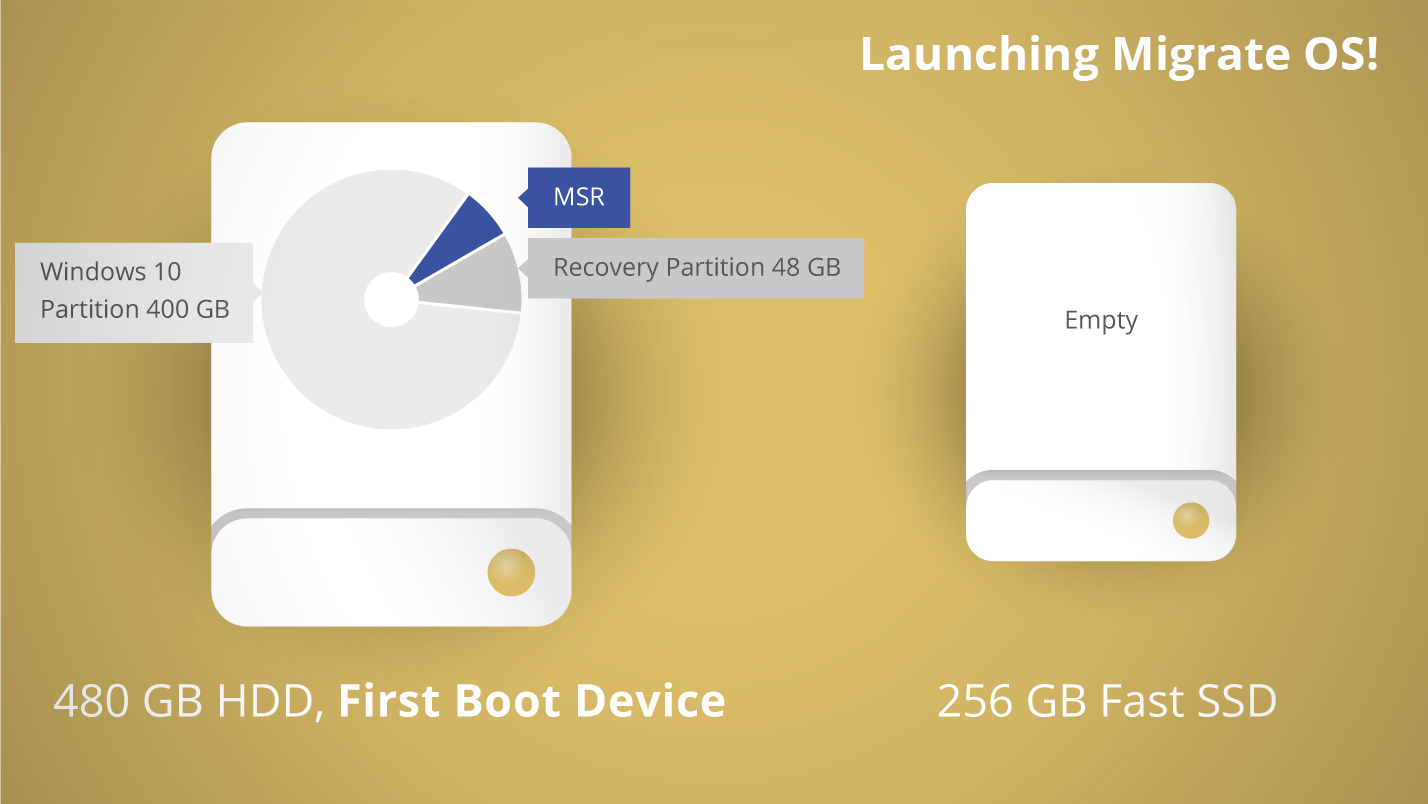 Migrate OS from large HDD to a smaller SSD
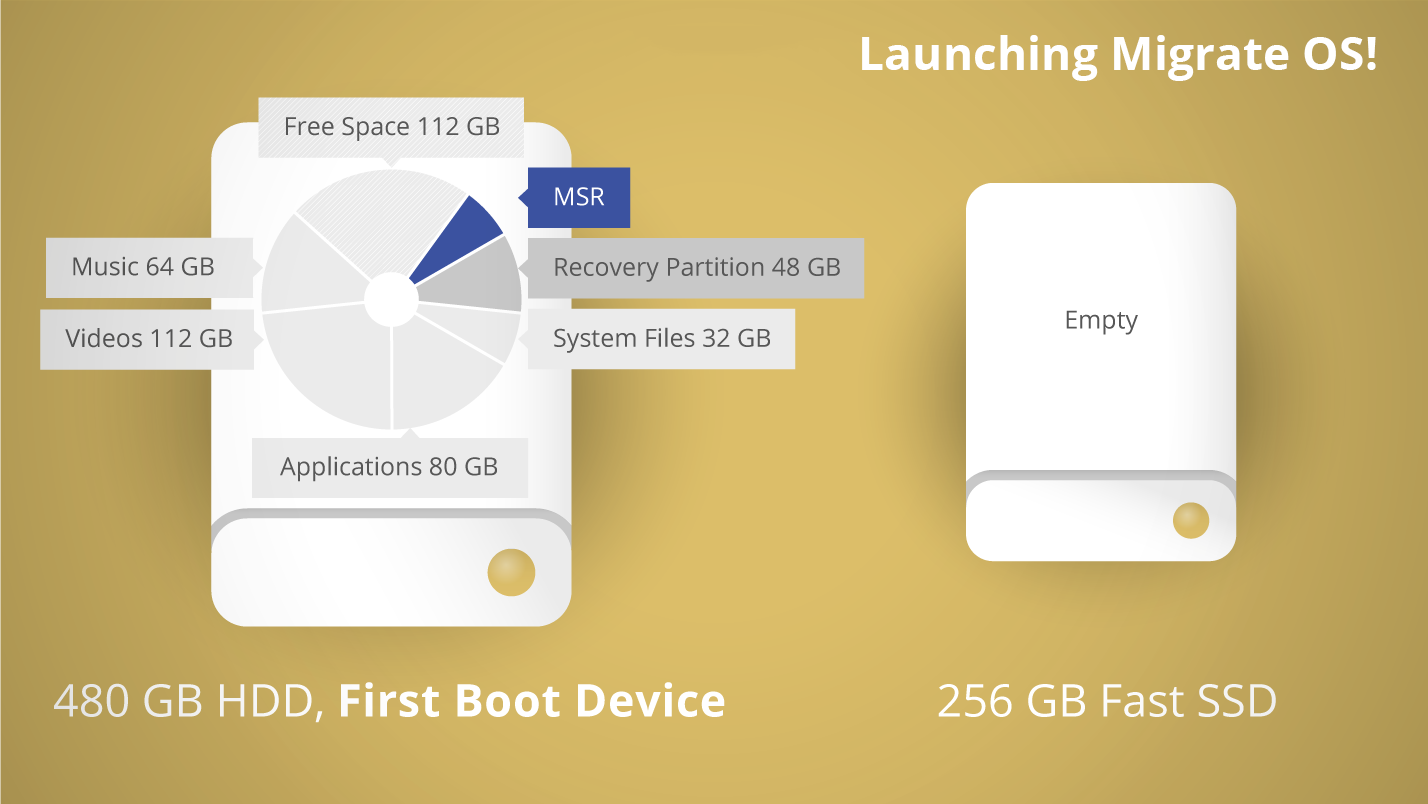 Automatically detects and copies MSR (Microsoft Reserved Partition)
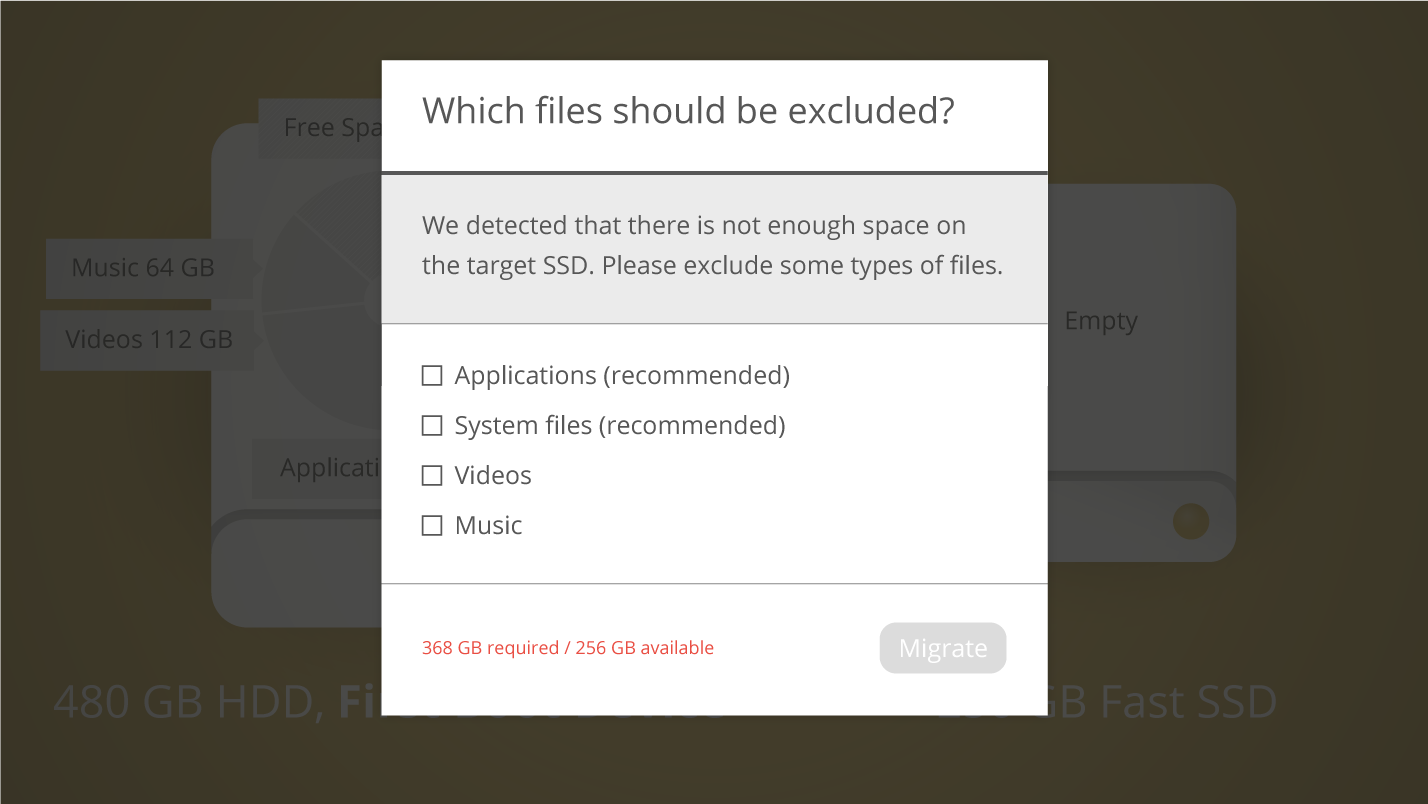 Allows the user to exclude data during the setup in order to fit in to the destination disk
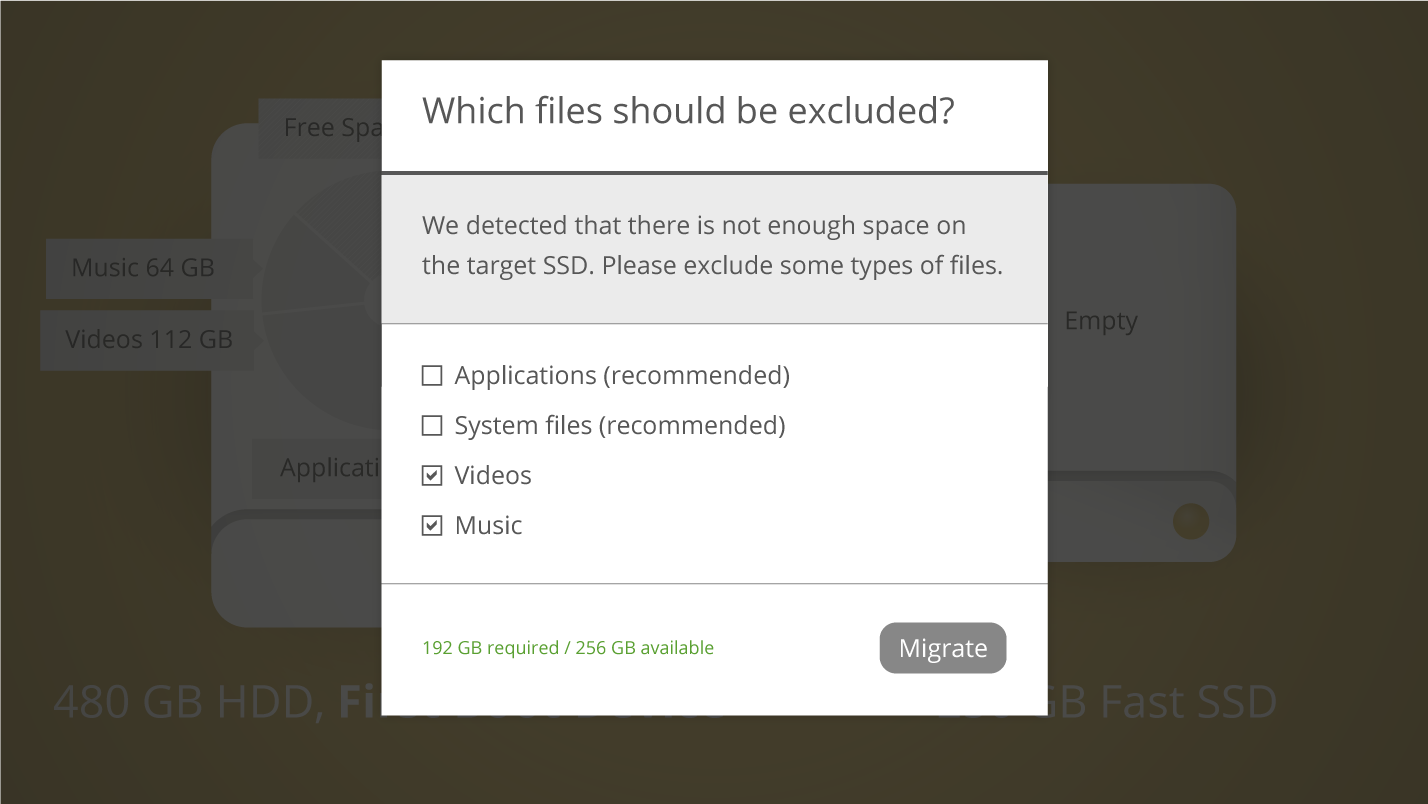 Exclude file types that could take plenty of disk space, like video, music, photos, etc
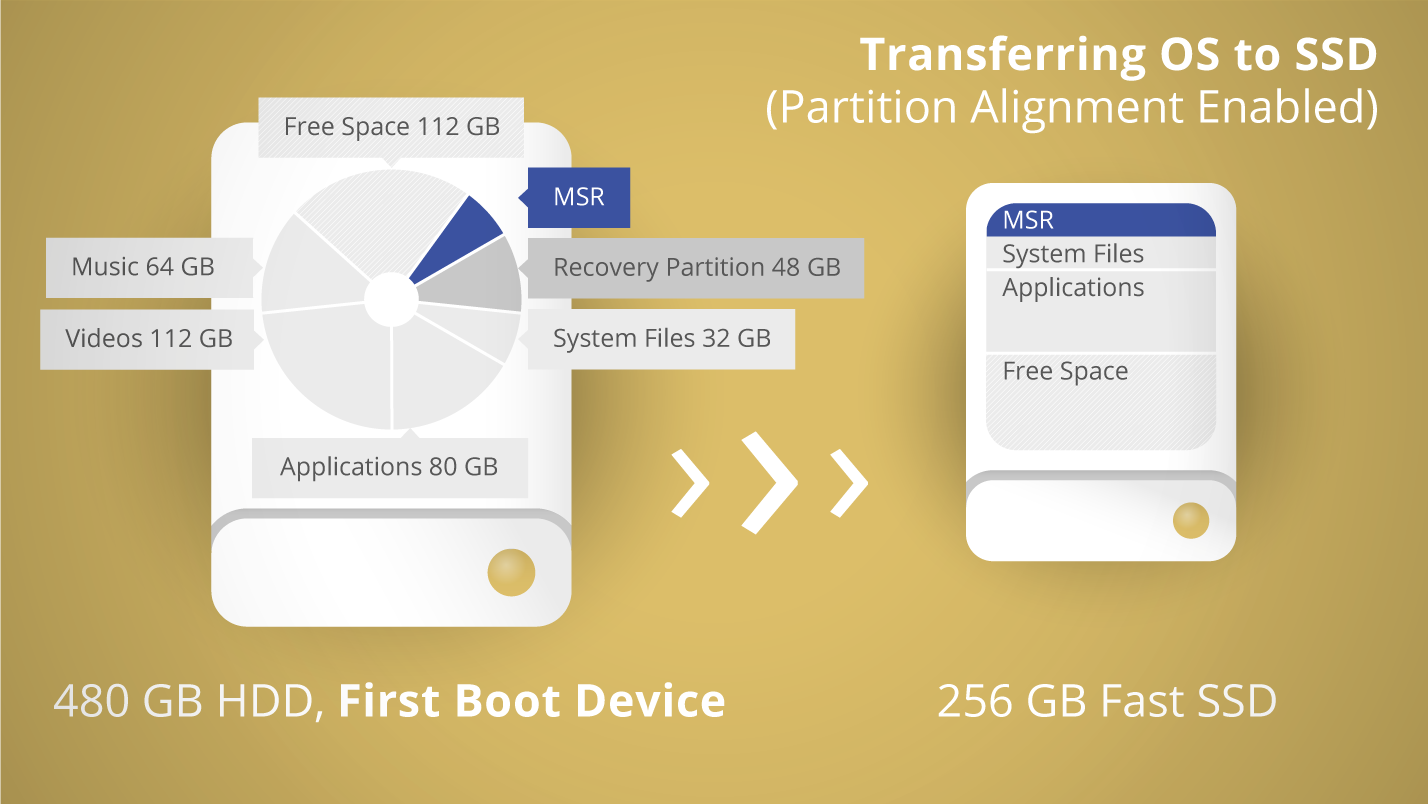 Transferring OS to SSD - partition alignment enabled
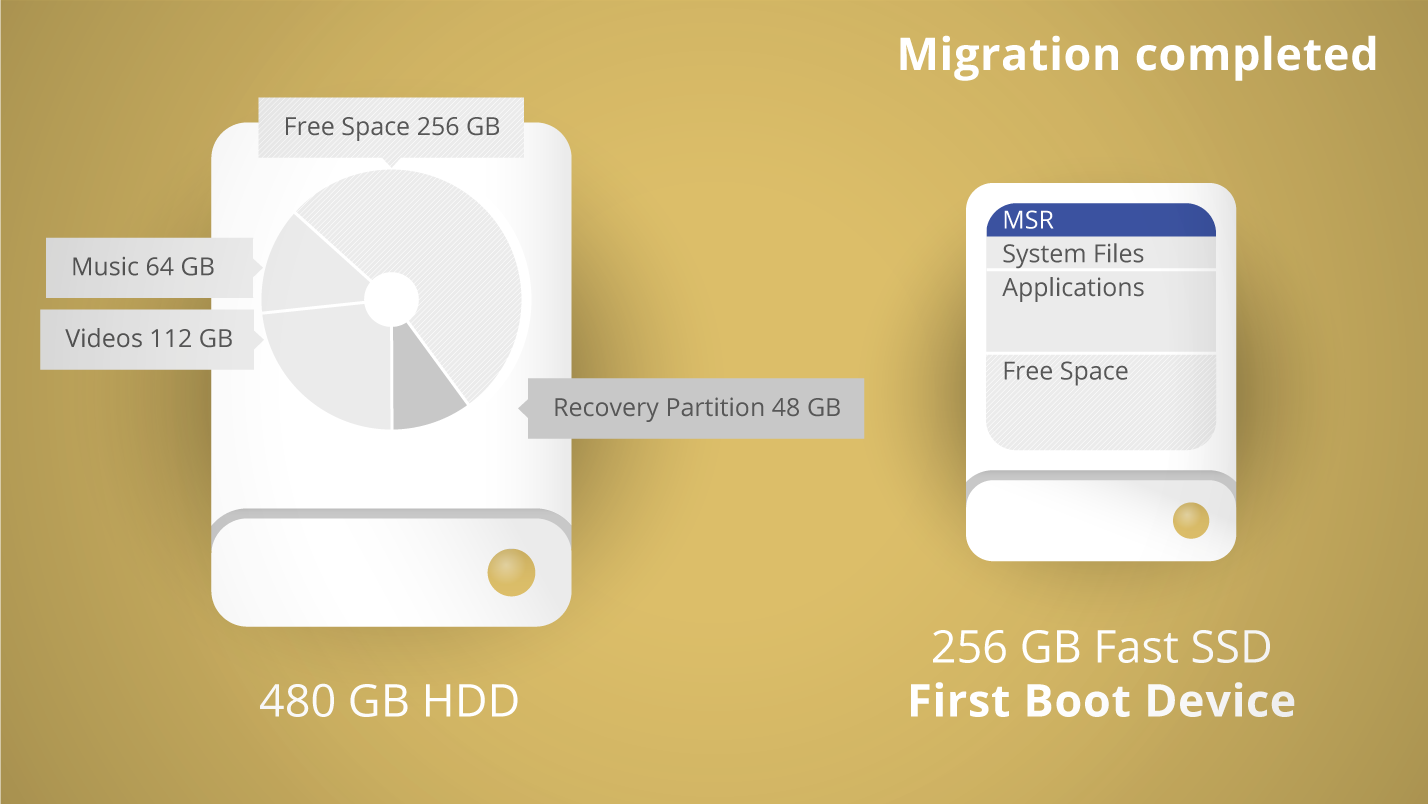 One-step migration to new SSD completed
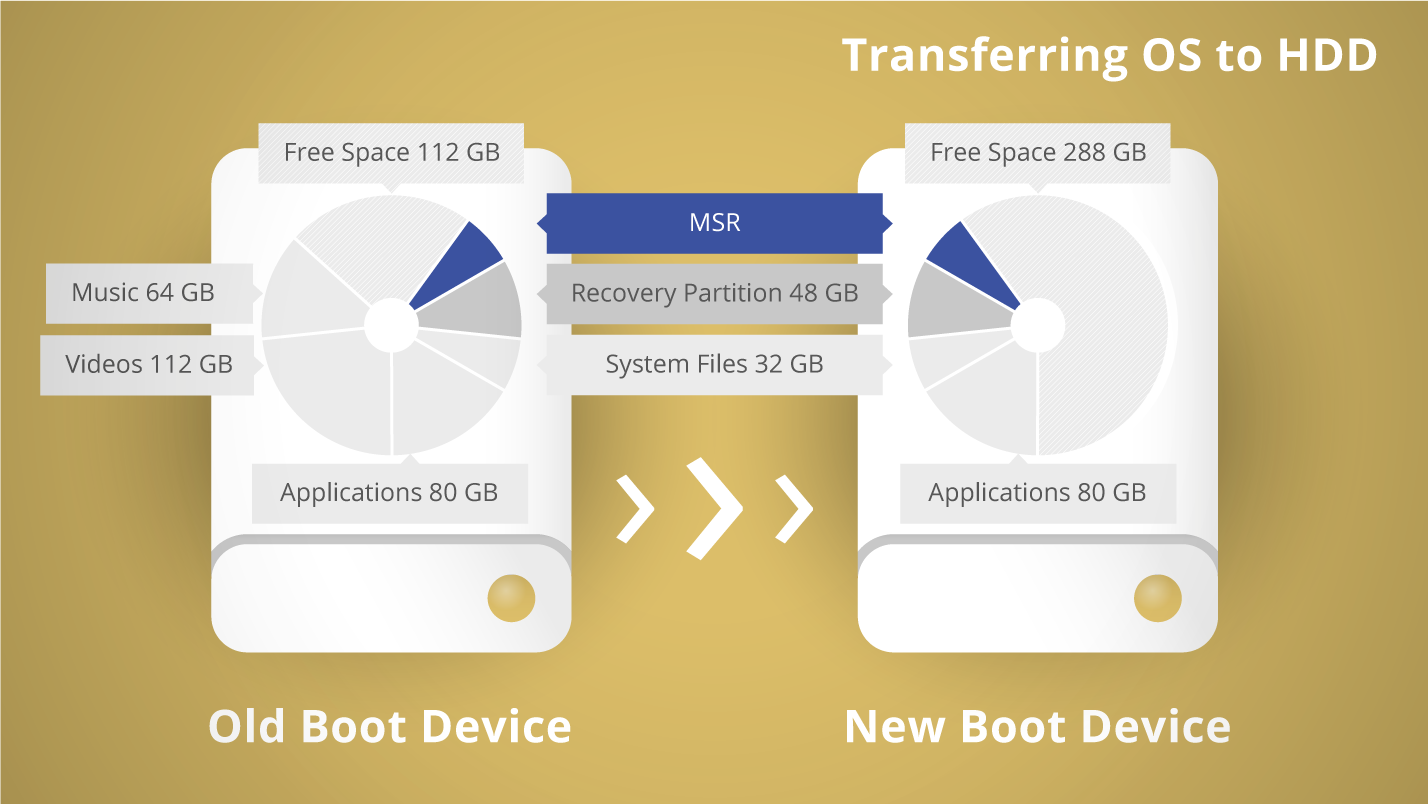 Larger HDD as new boot device
Frequently Asked Questions
| When trying to buy Migrate OS, I’m redirected to an on-line shop page of Drive Copy Advanced, which says it includes Migrate OS among other features. But I only need to migrate my Windows. Is there a way to purchase Migrate OS alone without extra charges? | |
| |
| Can I use your product on the latest Windows 10 Creators Update? | |
| |
| Windows asks for activation after copying to another storage device. | |
| |
| Can I copy BitLocker-encrypted volumes? | |
| |
| Does your product support Microsoft Dynamic Disks? | |
| |
| What RAID configuration does your product support? | |
| |
| My SATA/RAID controller is not recognized by the WinPE recovery media. | |
| |
| What system folders are critical for OS startup, logon and proper operation of programs, and must not be excluded from copying? | |
| |
| Can I re-activate my license on another computer? | |
| |
| How many times can I re-activate my license? | |
|
Features
| Features | Benefits |
|---|---|
| Supported Windows Platform |
|
| Target Disk |
|
| MSR (Microsoft Reserved Partition) | Automatically detected and copied |
| System Downsize | Smart filters to exclude unnecessary files |
| Live Move | Microsoft Volume Shadow Copy (VSS) is used for unobtrusive copying while in-use and restarting system without reboot |
| Partition Alignment | Automatic |
| Recovery |
|
Contact Sales
If you have questions related to purchasing Migrate OS, click the button below to send us a message.
Submit requestor
Call our Sales team
Global Headquarters (Germany)
For business inquiries only!

 Mon thru Fri
United States Office
For business inquiries only!
 +1-888-347-5462
 Mon thru Fri