
This website uses cookies to ensure you get the best experience on our website. By continuing to browse the site, you agree to our use of cookies.

More info ››
Contact sales: 1-888-DISK-IMAGE
❯

1-888-DISK-IMAGE (1-888-347-5462)

Sales North America

+49-761-59018-202

Sales Europe

+81(3)3265-1278

Sales Japan

+7 (495) 789-6717

Sales Russia

Contact sales: 1-888-DISK-IMAGE
❯

1-888-DISK-IMAGE (1-888-347-5462)

Sales North America

+49-761-59018-202

Sales Europe

+81(3)3265-1278

Sales Japan

+7 (495) 789-6717

Sales Russia

Linux File Systems for Windows by Paragon Software

Boost your Windows with Paragon File System Link
Linux File Systems for Windows by Paragon Software. HTML Banner.
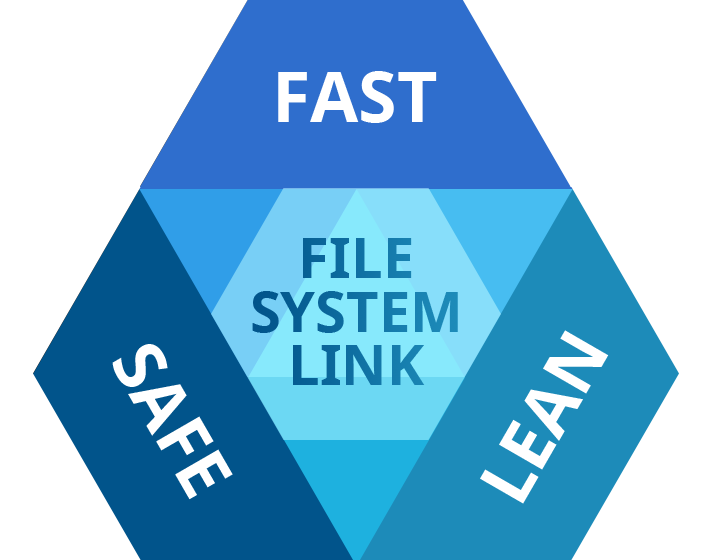
Paragon File System Link: Fast, Safe, Lean. Pick all three.
Pick all three.
Linux File Systems for Windows by Paragon Software grants you transparent access to Linux volumes within Windows.


Just plug your hard disk with ExtFS/Btrfs/XFS partitions into your PC and instantly work with any media on the Linux partitions.

Stable Operation

Fail-safe operability across compatible hardware and software systems for both general-purpose and specialized applications

Data Safety

Protection of data integrity and prevention of accidental data corruption and possible loss

Guaranteed Performance

Steady throughput and balanced goodput with effective flow control, reduced overheads, and congestion avoidance

Efficient Use

Thrifty usage of processor, memory, and disk resources

Native look and feel
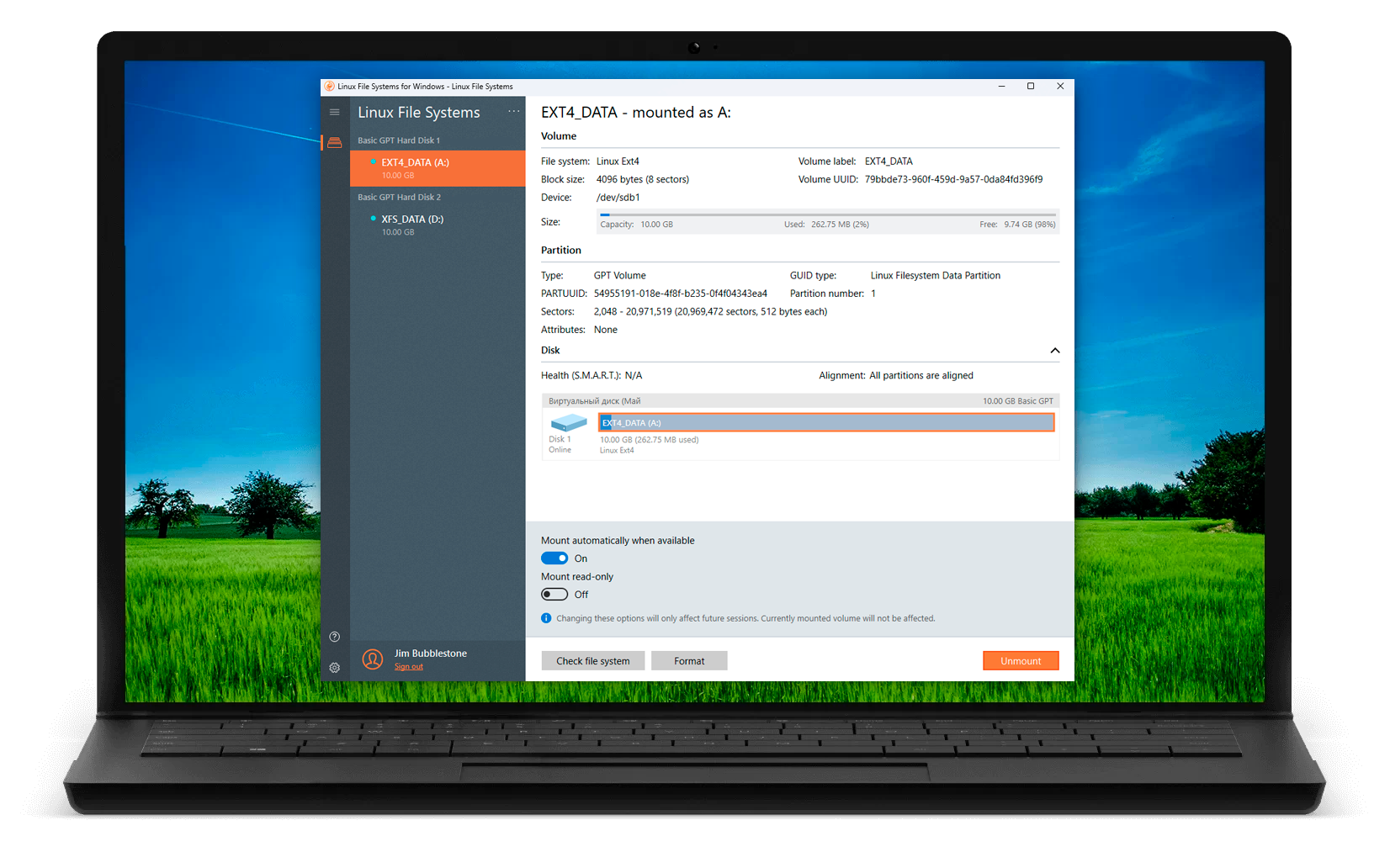
Native look and feel

  • As you launch Paragon ExtFS, it will automatically detect existing Ext partitions and mount them in Windows. This is a very clever software and prevents mounting of the Linux swap partitions. You can see the list of detected or mounted Ext partitions from the Paragon ExtFS system tray icon context-menu.

    trishtech.com
  • I have been pleased by its speedy performance as well. Since it allows me to use existing Windows file-managing applications, I have not noticed any slow-down in transfer speeds. It is very seamless.

    By Jack M. Germain
    linuxinsider.com
  • After trying many other products to read data from a failing SSD containing the root filesystem for a Linux system, I tried the Linux File Systems for Windows product by Paragon Software. It worked great. Even though several versions of Linux were unable to even mount the root partition on the SSD, Linux File System had no trouble. I was able to copy most of my data off the disk. Only a few files were irretrievably lost. I was so happy with the free trial that I have purchased the product. Thank you! I am also going to try some of your other products. There is so much junky software on the market – it is a pleasure to find one that really works.

    Jim Schatzman

How it Works

Install ExtFS for Windows

Install

Download and install
Linux File Systems for Windows by Paragon Software

Connect your ExtFS drive to your PC

Connect

Connect your ExtFS/Btrfs/XFS drive to your PC

Your drive will show up in Explorer

Use

Your drive will show up in Explorer
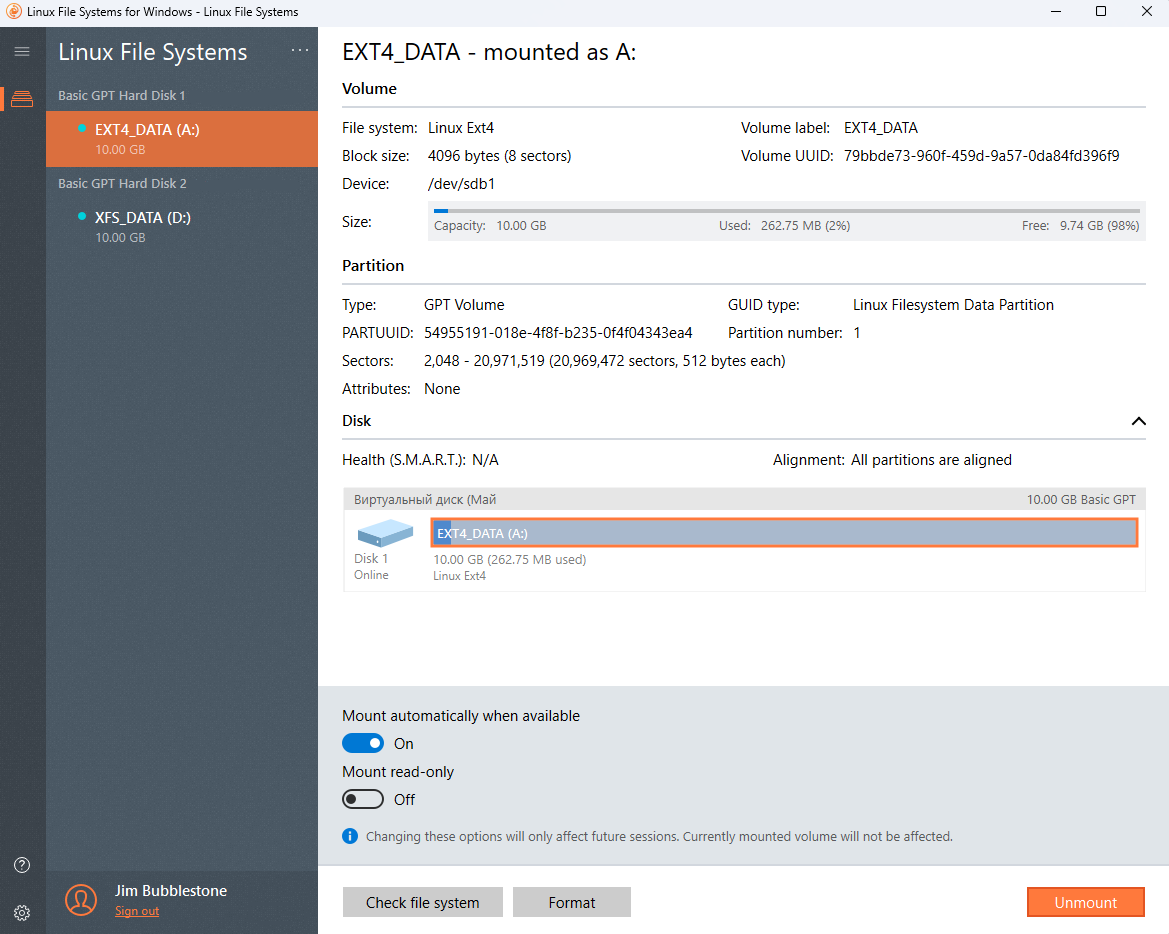
  • Linux File Systems for Windows by Paragon Software. Mount ExtFS partitions on Windows. Screenshot.
    Intuitive, user-friendly interface
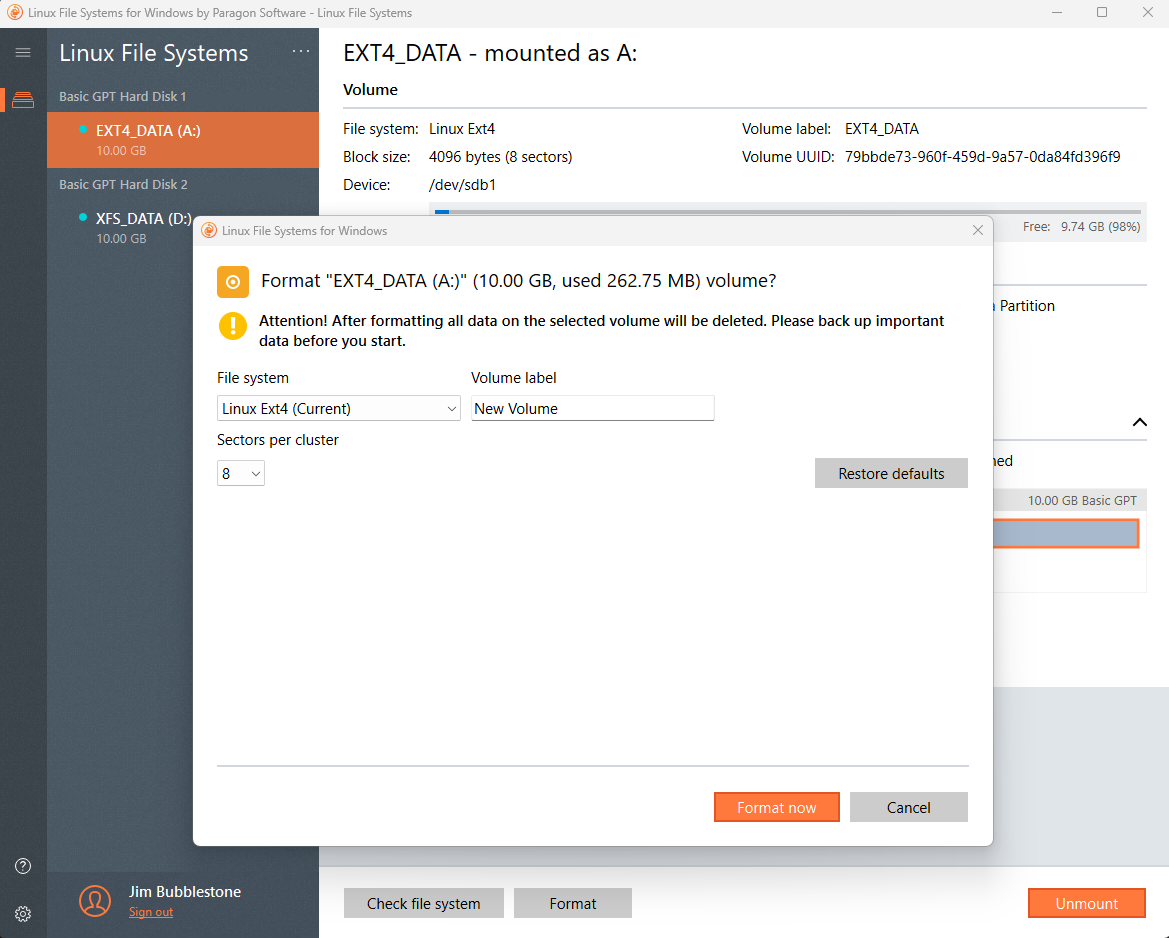
  • Linux File Systems for Windows by Paragon Software. Format volume with ExtFS/Btrfs/XFS filesystems. Screenshot.
    Format utility
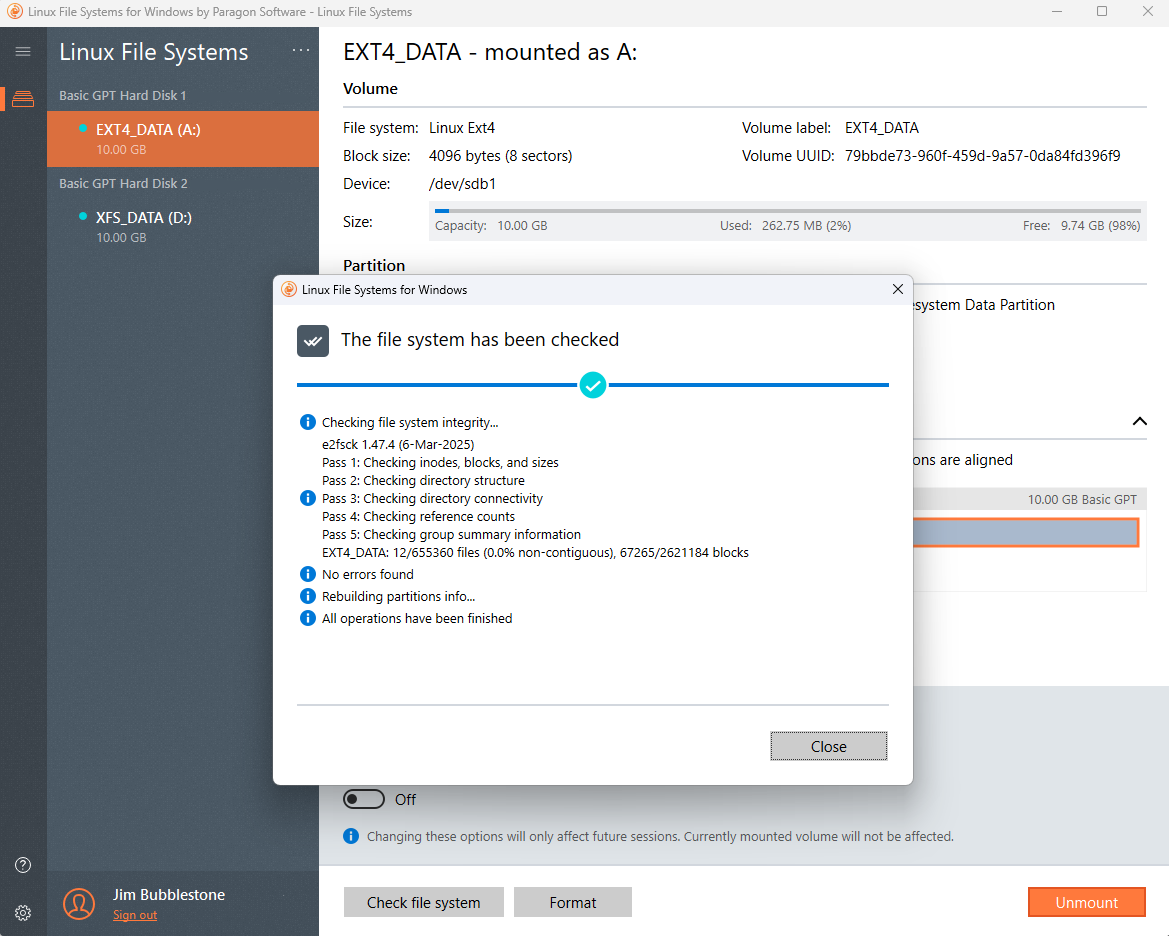
  • Linux File Systems for Windows by Paragon Software. Automatically fix Linux file system problems. Screenshot.
    Check utility
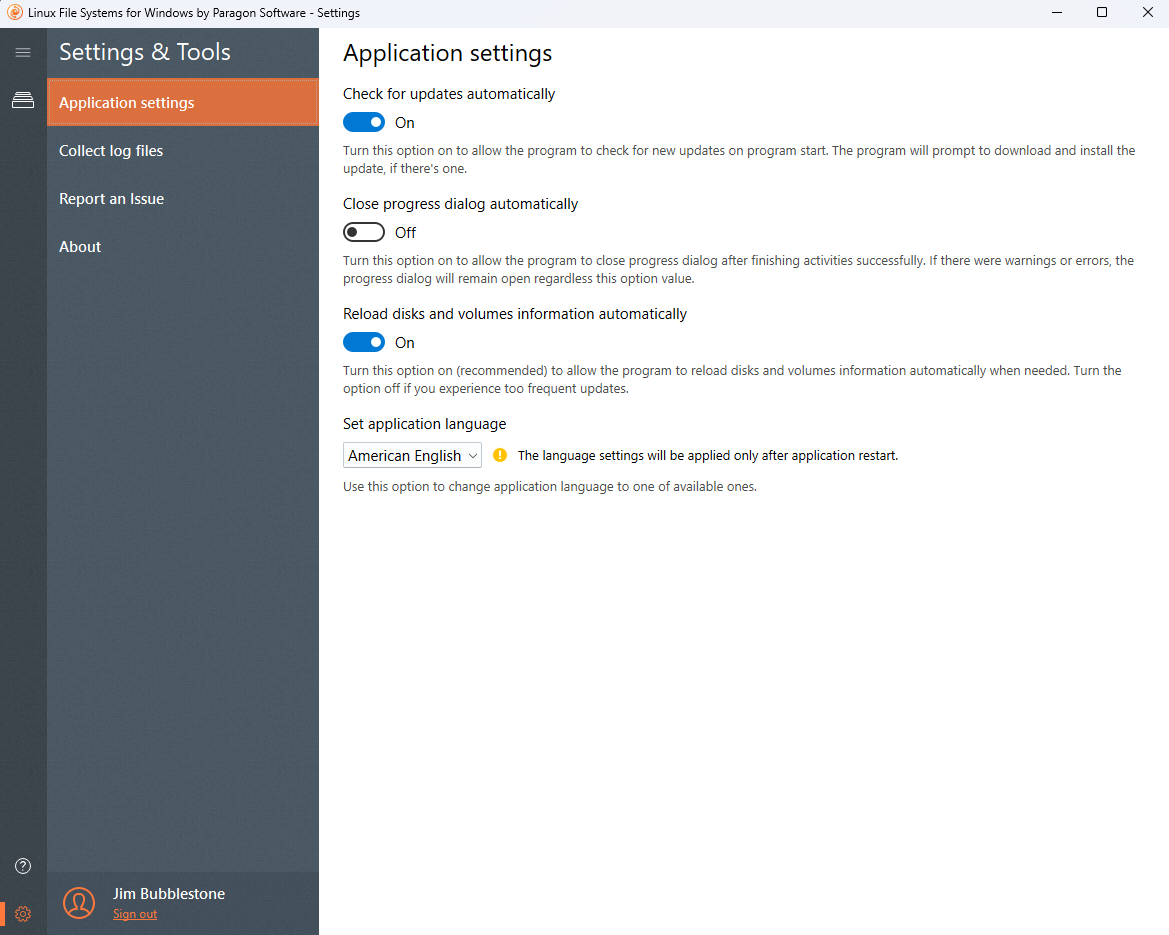
  • Linux File Systems for Windows by Paragon Software. Use Linux volumes in read and write mode. Screenshot.
    Settings
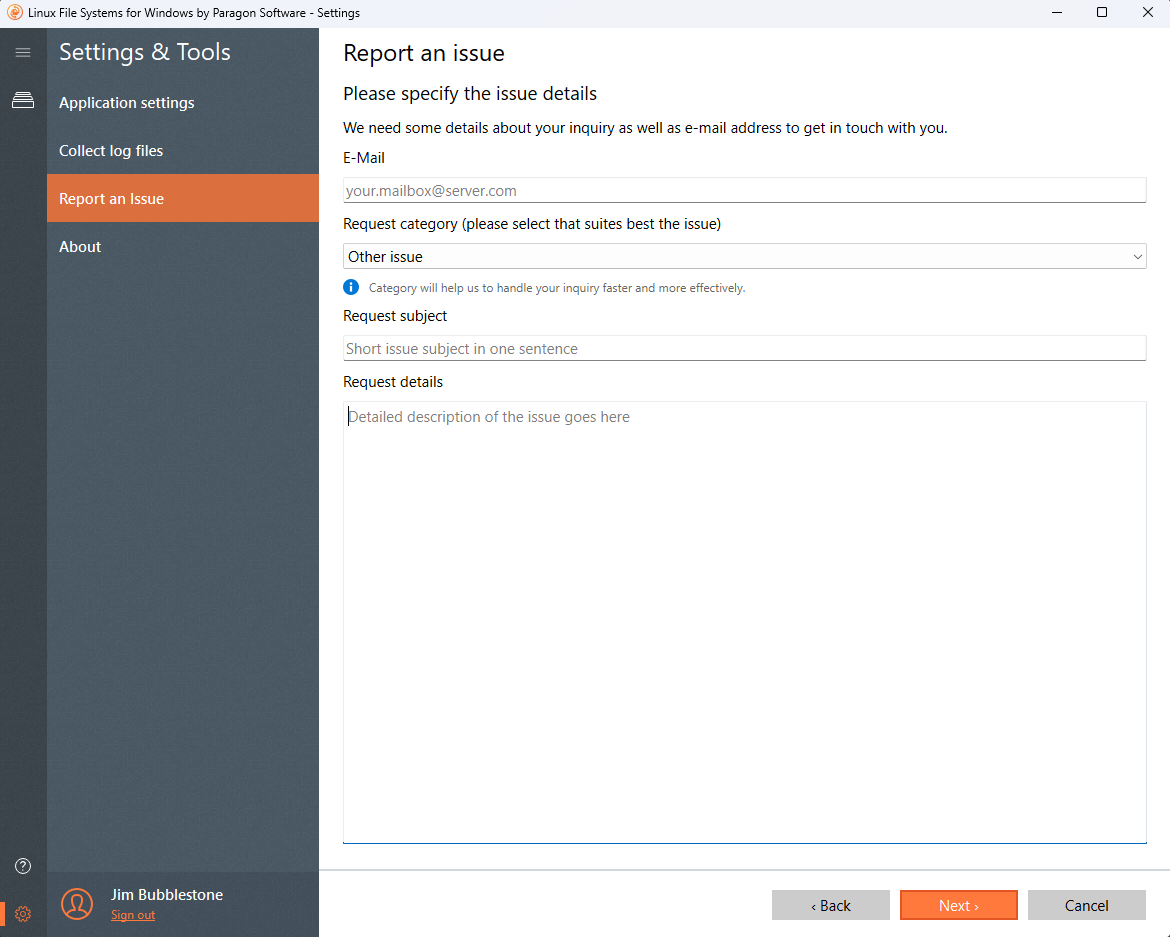
  • Linux File Systems for Windows by Paragon Software. Help Linux driver work Paragon customer support. Screenshot.
    Form for your feedback
  • Linux File Systems for Windows by Paragon Software. Access products in Paragon account. Screenshot.
    Sign in and activate

Features

Supported Operating Systems

  • Windows 11 (64-bit)
  • Windows 11 (ARM64 editions)
  • Windows 10 (64-bit 1809 and newer)

Business License only:

  • Windows Server 2025 (64-bit)
  • Windows Server 2022 (64-bit)
  • Windows Server 2019 (64-bit)

Supported File Systems

Read/write:

  • Ext2
  • Ext3
  • Ext4
  • XFS

Read-only:

  • Btrfs

Write Access

When ExtFS or XFS volume is mounted in write mode, you can do everything with files and folders it contains: read, edit, delete, rename, create new.

Automount

Mounts supported volumes automatically at startup, so you don’t need to bother about it each time you restart the operating system or power your computer on. However, this feature can be disabled at any moment in the program interface.

Volume Administration

Formats, checks integrity, and repairs corrupted ExtFS volumes with minimal effort.

Internationalization

Supports all character sets supported by your operating systems, including those that use non-Roman characters, so you will never face a problem of not getting access to file names on volumes mounted in non-native OS.

Read/write support for LVM (Logical Volume Management)

With Linux File Systems for Windows by Paragon Software, your Linux’s logical volume manager won’t lose any of its functions: it will be able to perform open, close, read and write operations and, in general, operate in a usual way.

Command Line Interface

Get full control over Linux File Systems for Windows by Paragon Software via a command line.

Compatibility with 3rd party software

Since product provides access to Linux volumes globally to the entire operating system, you can use most desktop and encryption applications, including TrueCrypt and its forks* (encrypted file container mode only).

Paragon Technology Center

Want to learn more about the technology behind Microsoft NTFS for Mac by Paragon Software? Check out the Paragon Technology Portal!
Frequently Asked Questions

Why do I need Linux File Systems for Windows by Paragon Software?
There is no way to read or write data from Linux-formatted storages in Windows. If you have Linux-based devices at home (NAS, smartTVs, multimedia boxes, routers) and would like to access data from Linux-formatted storages on Windows PC, you need Linux File Systems for Windows by Paragon Software.
What Linux file systems can I work with?
Linux File Systems for Windows by Paragon Software provides read and write access to Ext2, Ext3, Ext4 and XFS volumes. Btrfs are available in read-only mode.
Which Extended Filesystem features are supported?
These are 64bit, dir_index, extent, extra_isize, ext_attr, flex_bg, has_journal etc. Please, note that Linux File Systems for Windows by Paragon Software does not support bigalloc, journal_dev, meta_bg, inline_data features at the moment.
What can I do with files?
You can perform create/read/modify/copy/delete operations with your ExtFS and XFS files in a usual way and read or copy data from storages formatted to Btrfs.
Can I write to Btrfs-formatted disks?
No, Btrfs are available in read-only mode.
Can I format Btrfs and XFS volumes?
Yes, you can format Btrfs and XFS volumes to ExtFS. Please, note that you cannot format volumes to Btrfs and XFS.
Can I try the product for free before buying?
Sure, you can try Linux File Systems for Windows by Paragon Software for ten days completely for free. After that the speed will be reduced until you activate a purchased license.
I have Paragon ExtFS for Windows. Will it be updated?
Should I uninstall Paragon ExtFS for Windows before installing Linux File Systems for Windows by Paragon Software?
When I’m trying to install the product I get the error message: “Another version of this product is already installed. Installation of this version cannot continue”.
I cannot install the product via CLI.
Please install Microsoft Visual C++ 2015 Redistributable Update 3 RC and try again.

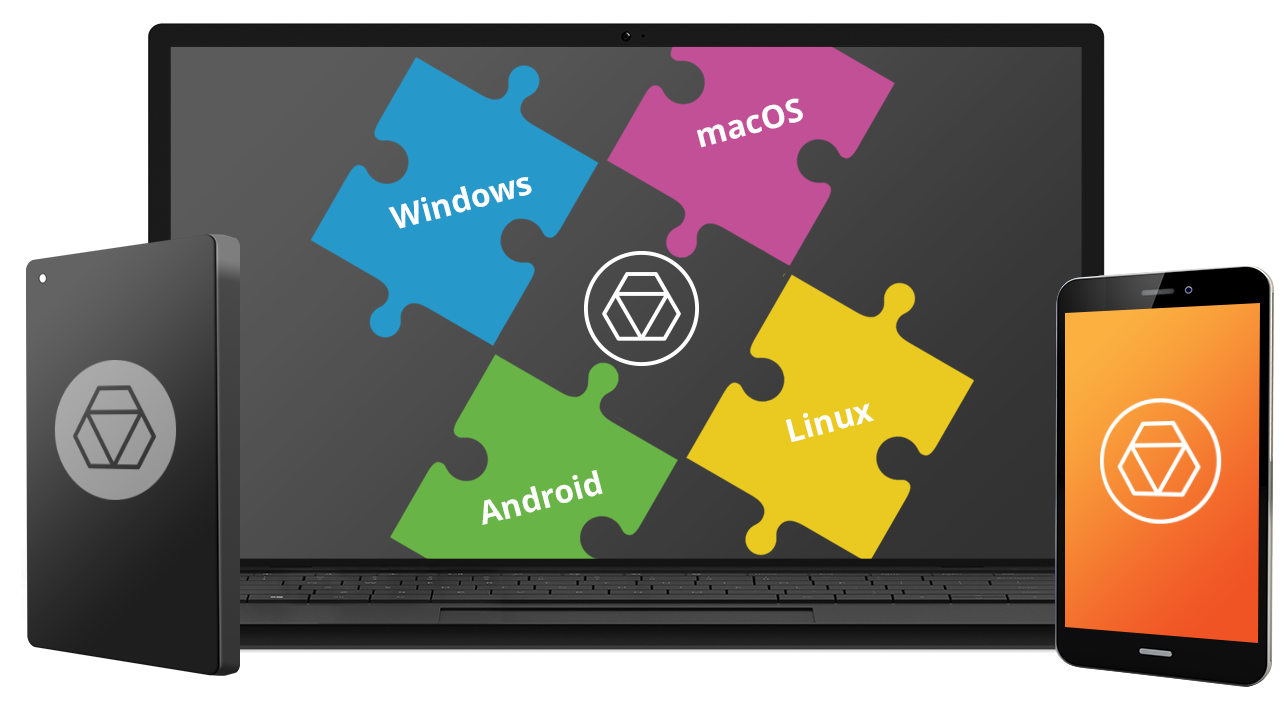
required file system drivers based on your it environment regardless of os.

File System Link Business Suite by Paragon Software NTFS extFS Linux File Systems HFS+ APFS

Resources

Current Version

Download Linux File Systems for Windows by Paragon Software

Product Documentation

Download Linux File Systems for Windows by Paragon Software One Pager

Need help?

Contact Support

Evaluate for 10 Days!

Select the installation package that matches your operating system type. You can check this by opening About your PC from Windows Search and look for x64-based processor or ARM-based processor.

Spelling error report

The following text will be sent to our editors: